Audit Logs
Audit logs help you review AI worker usage after the fact. They show who ran what, which AI worker was launched, how many executions occurred, and how credits changed, making them useful for operations review, cost investigation, and unexpected-run analysis.
Overview
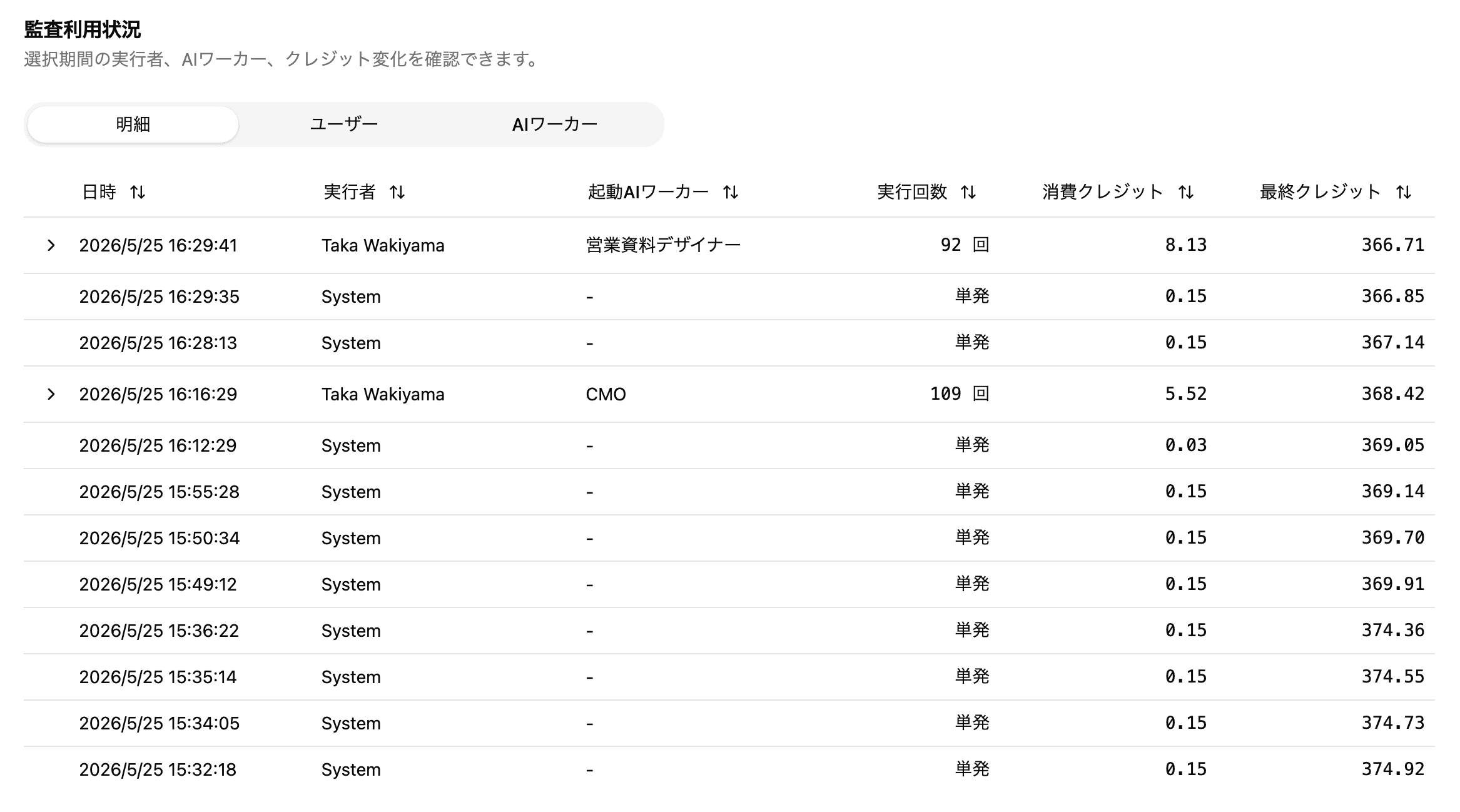
How to read audit usage records for actor, launched AI worker, execution count, consumed credits, and final credit balance over a selected period.
Basics
Use details to inspect individual usage changes
The Details tab lists timestamp, actor, launched AI worker, execution count, consumed credits, and final credit balance row by row.
User-initiated runs show the actor and AI worker name. System-originated one-off operations appear as System. Filter the period and look for unusually large credit consumption or clusters of executions at the same time.
Aggregate by user or AI worker
Switch tabs to review usage by user or by AI worker.
- User: understand whose activity or connected entry point is driving usage
- AI worker: identify which workers are running often or consuming the most credits
For monthly reviews, start with AI-worker totals, then drill into details for the relevant time range.
When to check audit logs
Audit logs are useful for routine reviews and investigations.
- Credit usage is higher than expected
- A specific AI worker appears to launch repeatedly
- You need to see which team members are using which workers
- You want real usage data before adjusting triggers or automation settings
If the log alone does not explain the cause, also check the worker's triggers, inbound channels, and run history.
Do not rely on logs alone
Audit logs are the entry point for usage review. For root-cause investigation, also check the relevant worker settings, triggers, inbound channels, and run history.
Checklist
Have you selected the target period and identified rows with high credit consumption?
Have you decided whether the investigation should start by user or by AI worker?
If a run is unexpected, have you also checked the worker's triggers and inbound channel settings?