Integrations
Integrations are how AI workers reach external SaaS and MCP servers. Pick the service from "Browse Apps"; if the tool you need is not listed, add it as a Custom MCP yourself.
Overview
How to connect external services to AI workers, including OAuth profile ownership, per-worker assignment, and adding your own Custom MCP.
Basics
What "Browse Apps" offers, and what Custom MCP is for
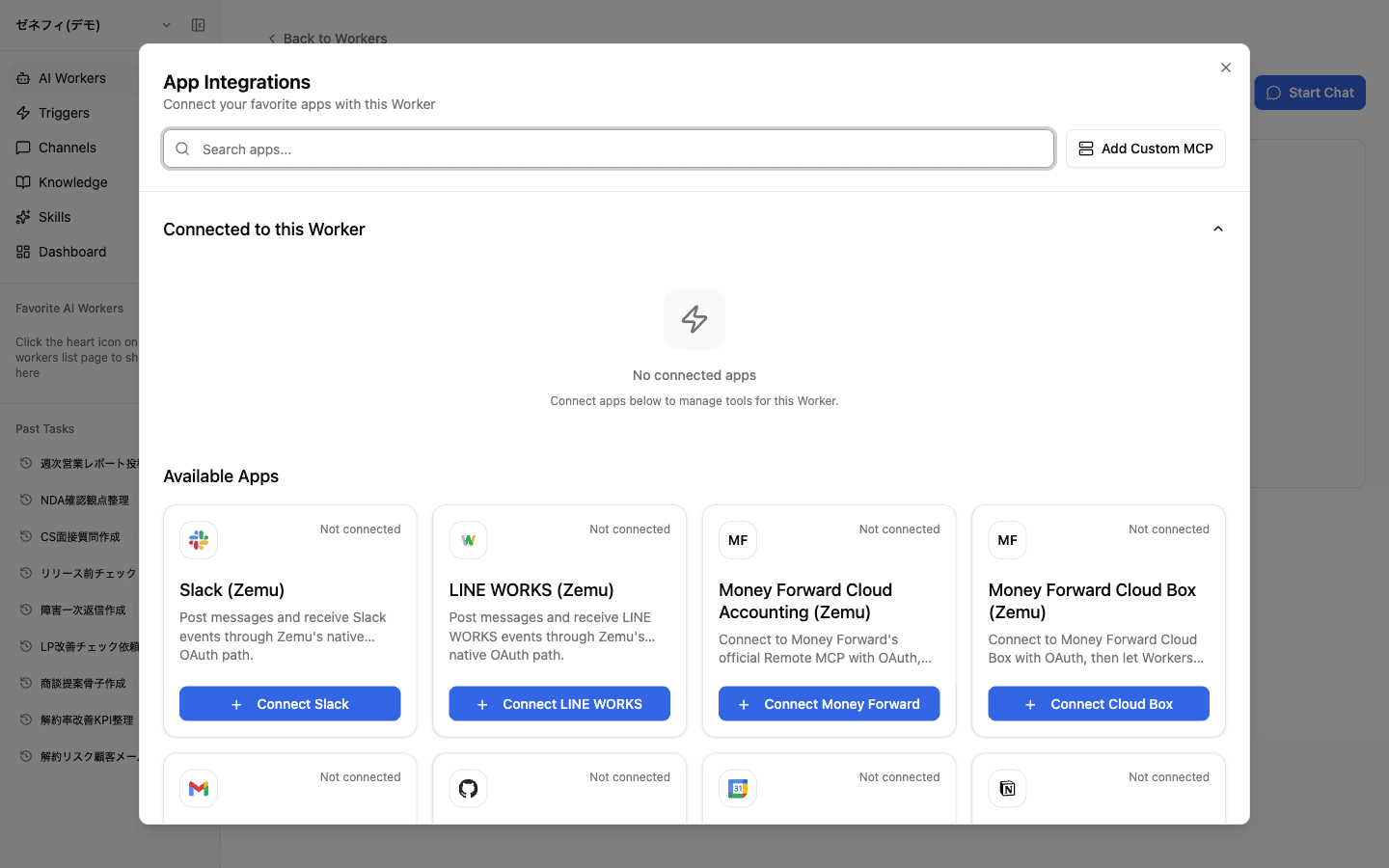
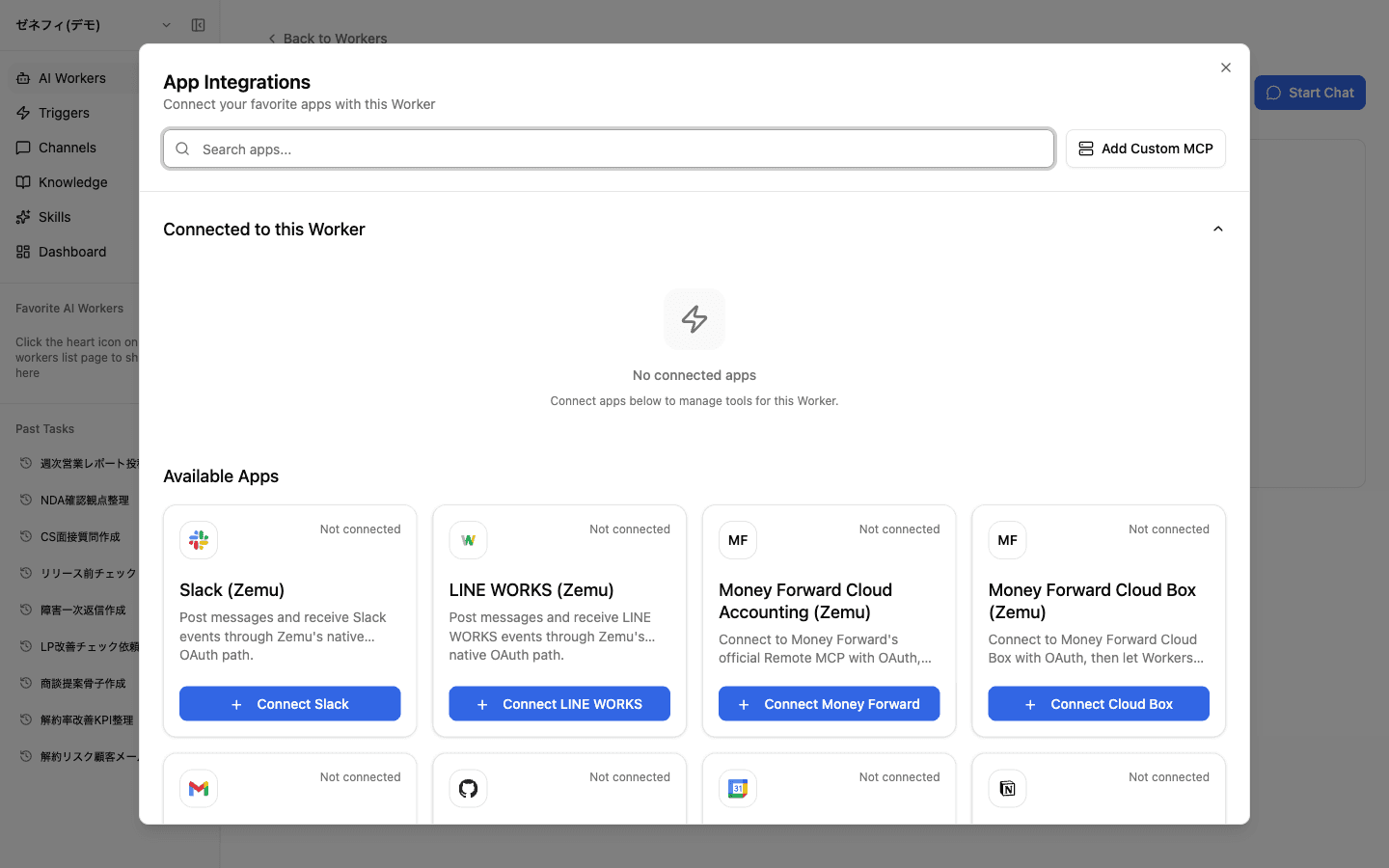
The worker's Integrations tab → "Browse Apps" lists every app you can connect.
- Zemu-provided apps — cards labelled
(Zemu)such asSlack (Zemu),LINE WORKS (Zemu),Money Forward Cloud (Zemu) - Composio-backed apps — cards with just the service logo, e.g. Gmail, GitHub, Notion, Google Calendar
- Custom MCP — for any tool that is not in the list, you can add your own MCP server (covered in the last section)
For most apps you just pick the card and complete OAuth — there is no need to think about which category it is.
OAuth profiles are owner-scoped (not shareable)
An OAuth profile (a specific Slack workspace, a specific Money Forward account, etc.) is personal credentials owned by the creator.
Zemu security model:
- Another user cannot reuse, reconnect, or attach a profile someone else created
- Even inside the same organization, worker runs use the owner's permissions
- For team-shared use, create a service account on the SaaS side and connect a profile from that account
Naming matters: when an org uses multiple accounts, give profile names that make ownership obvious — defaulting to the signed-in user's email is one way to keep the mapping clear.
Connecting is not enough — assign it on the worker
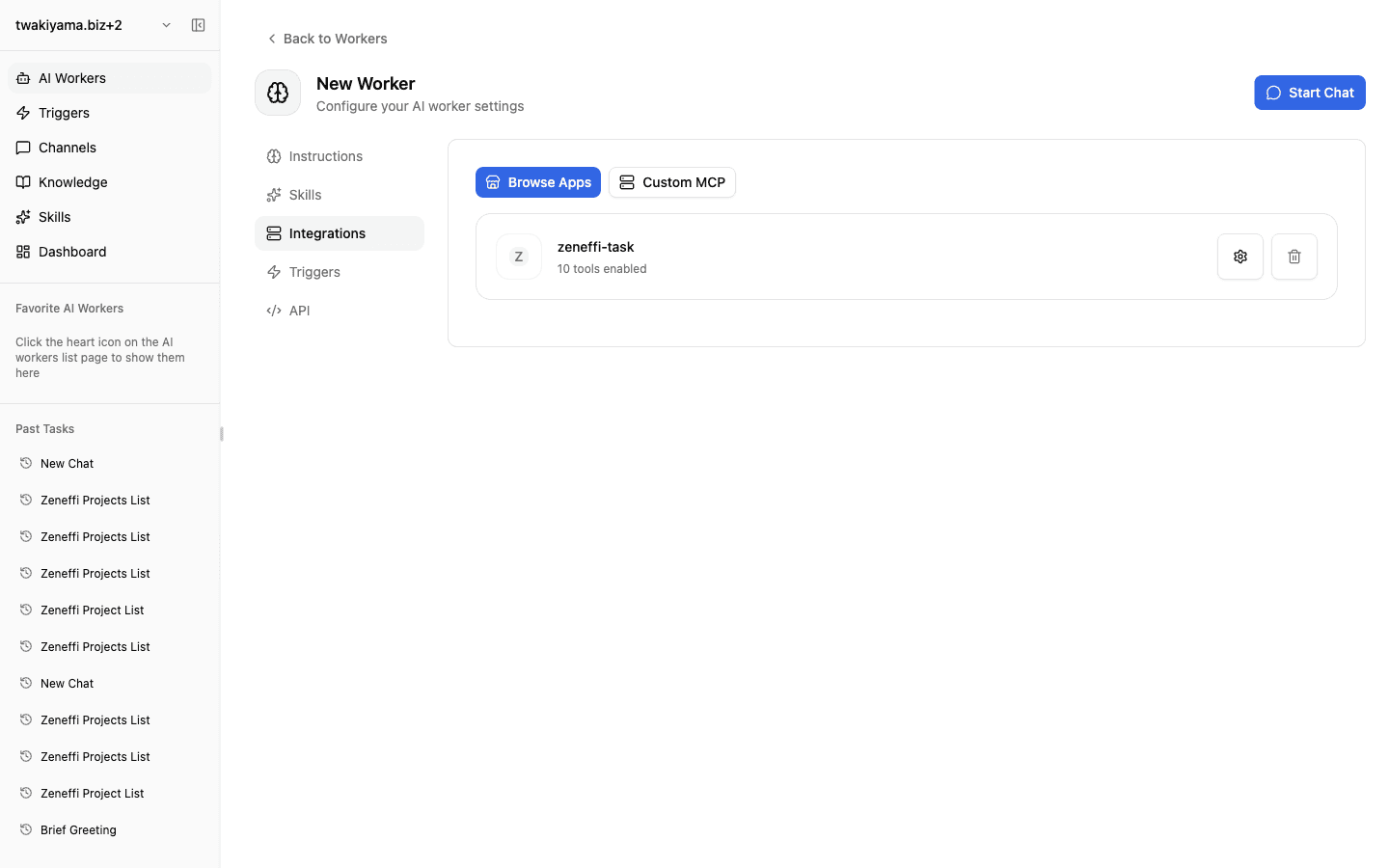
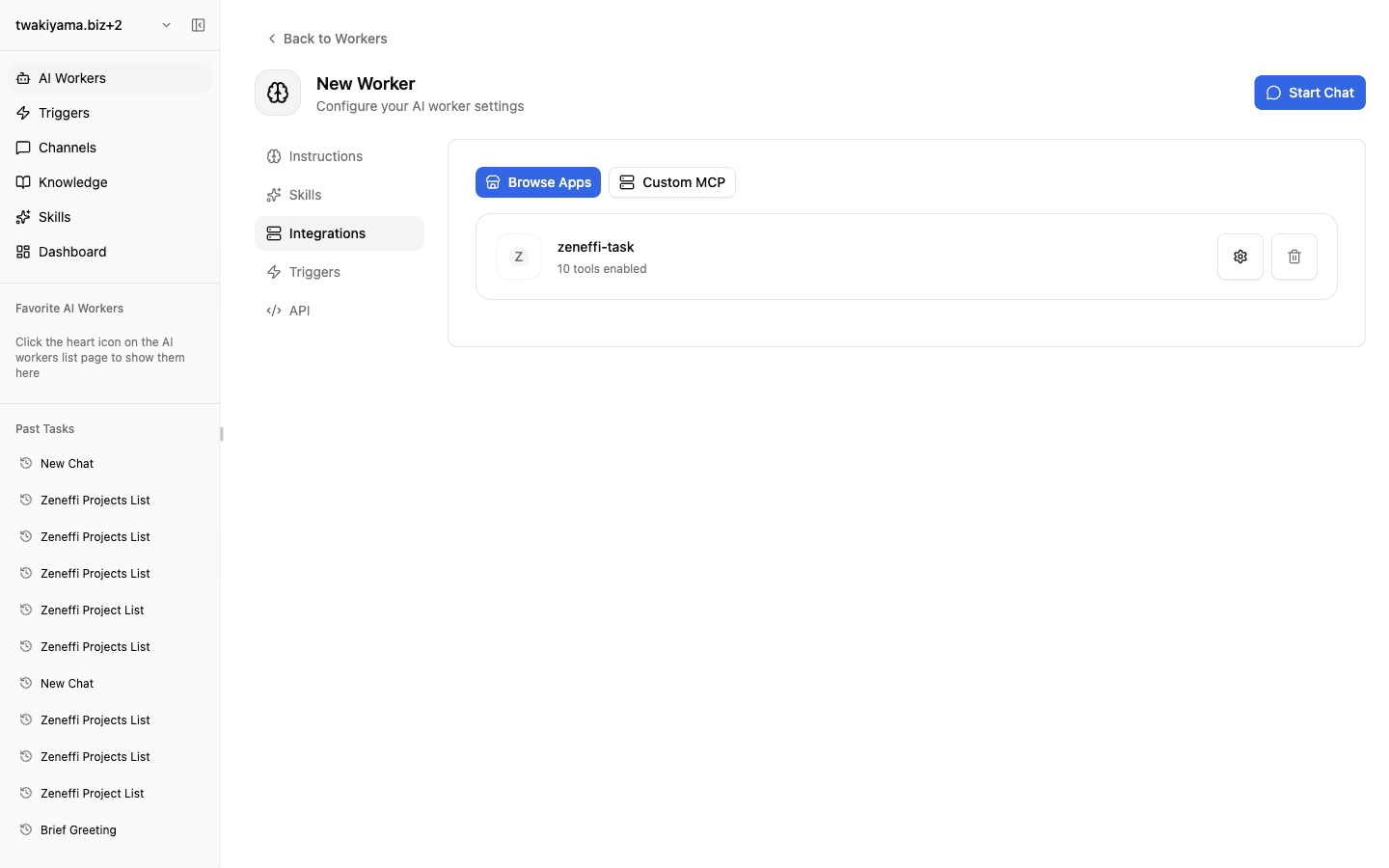
Even after the OAuth profile exists, a worker cannot reach the service until you explicitly attach the profile on the worker's Integrations tab.
The screenshot above shows Operations AI with an empty Integrations tab. Until you go to "Browse Apps" and add the profile, the tools never reach this worker.
Additional levers:
- Tool selection: even within one app integration, you can restrict which tools are exposed (e.g. read-only)
- Multiple profiles on one worker: a worker can hold an internal Slack profile and a partner Slack profile simultaneously and choose by context
If "I connected it but nothing works," check first that it is attached to the worker, second that the relevant tools are enabled.
Custom MCP — bring your own MCP server
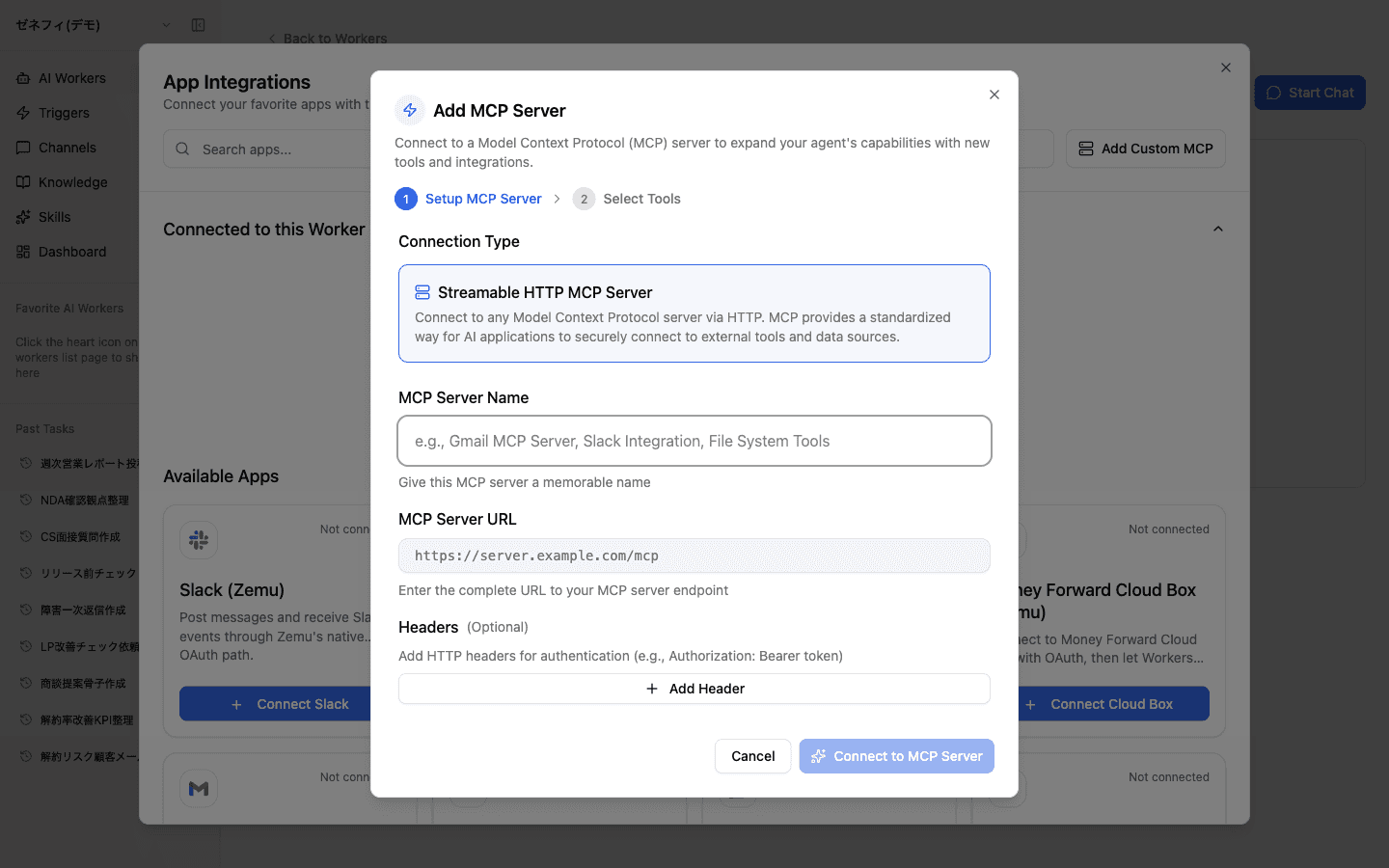
When a tool you need is not available as a native or vendor MCP, add your own with Custom MCP.
Fields you provide:
- Connection type: currently
Streamable HTTP MCP Server - MCP Server Name: a memorable label (e.g.
Internal Gmail MCP) - MCP Server URL: the full endpoint, e.g.
https://server.example.com/mcp - Headers (optional): HTTP headers for auth (e.g.
Authorization: Bearer token)
Step 2 of the dialog is "Select Tools" — pick which of the server's exposed tools the worker should see.
Checklist
Is the external service you want to connect already in "Browse Apps"? If not, can you add it as a Custom MCP?
Are OAuth profiles treated as owner-scoped, with service accounts created when team-wide sharing is needed?
Have you confirmed both the profile-level connection AND the per-worker assignment plus tool selection?